I’ve been getting quite a few requests for Wii services in 2026 but mostly just straight refurbishments – capacitor replacement, cleaning and thermal pads, etc. When a customer reached out to inquire if I would install a PixelFX RetroGEM HDMI mod (even without the option listed on my site) I was more than happy to! That service has since been added and sits alongside the other offering – the ElectronAVE HDMI Install.
Of the entire PixelFX line this isn’t the hardest one but it’s definitely a step above the GameCube and N64 installs for complexity, especially when dealing with the mess that is the flex connections!
Read on to see more about the process…
Most customers elect for the Full-Service Cleaning and rightfully so, these things seem to attract a ton of dust and dirt in the areas near the intake and also rear fan exhaust. This customer did not and while I would have reached out if I discovered a mess after opening, I didn’t have to as it was pretty darn clean both inside and out!
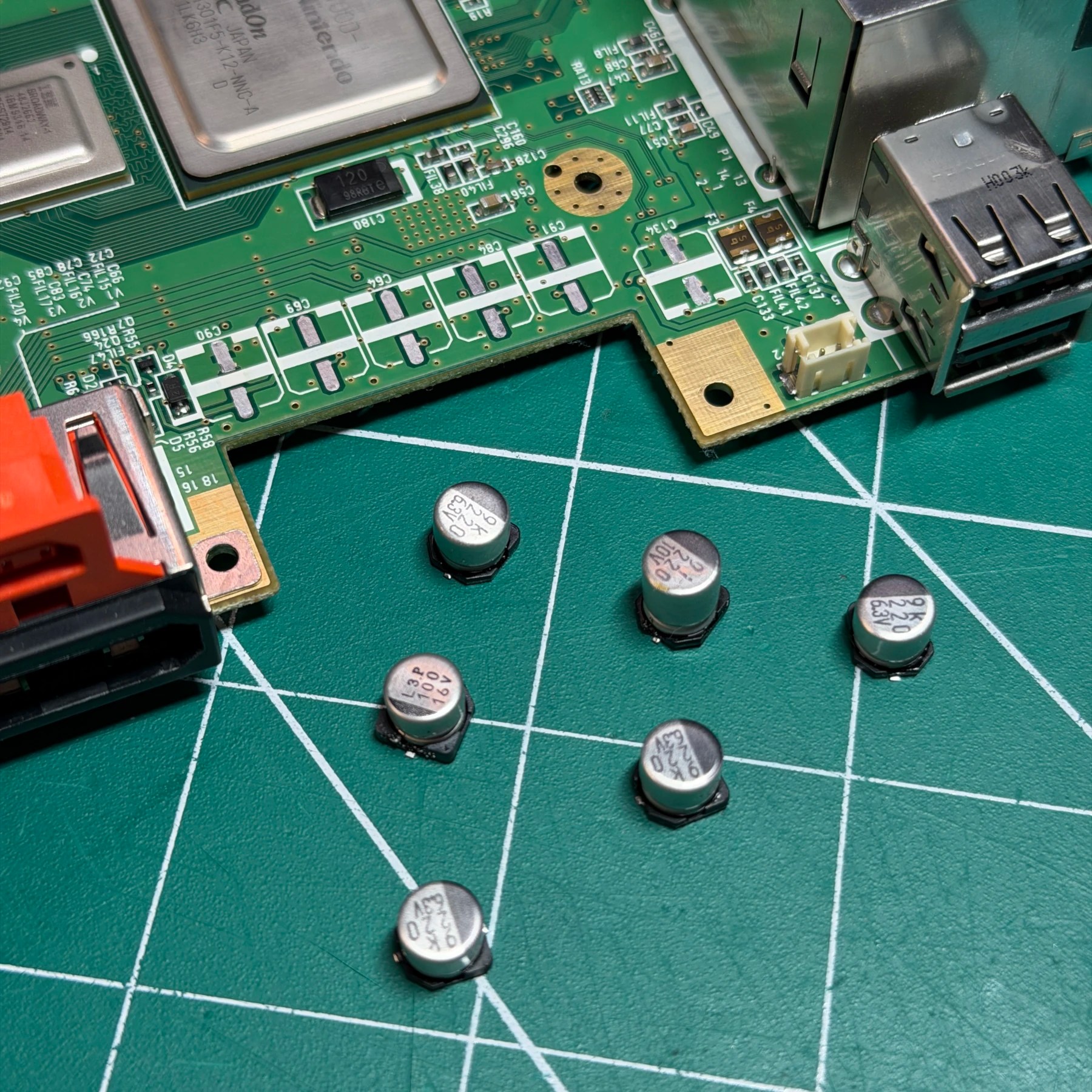
First order of business was tearing down the console all the way to the bottom shell piece so the motherboard could be extracted, and any shielding/plastic pieces removed from the top as well as the heatsink. I knew I wanted to do the cap replacement before touching the HDMI mod so I fired up my hot tweezers and got the 6 electrolytics removed, pads prepped and new caps from Console5 soldered on.
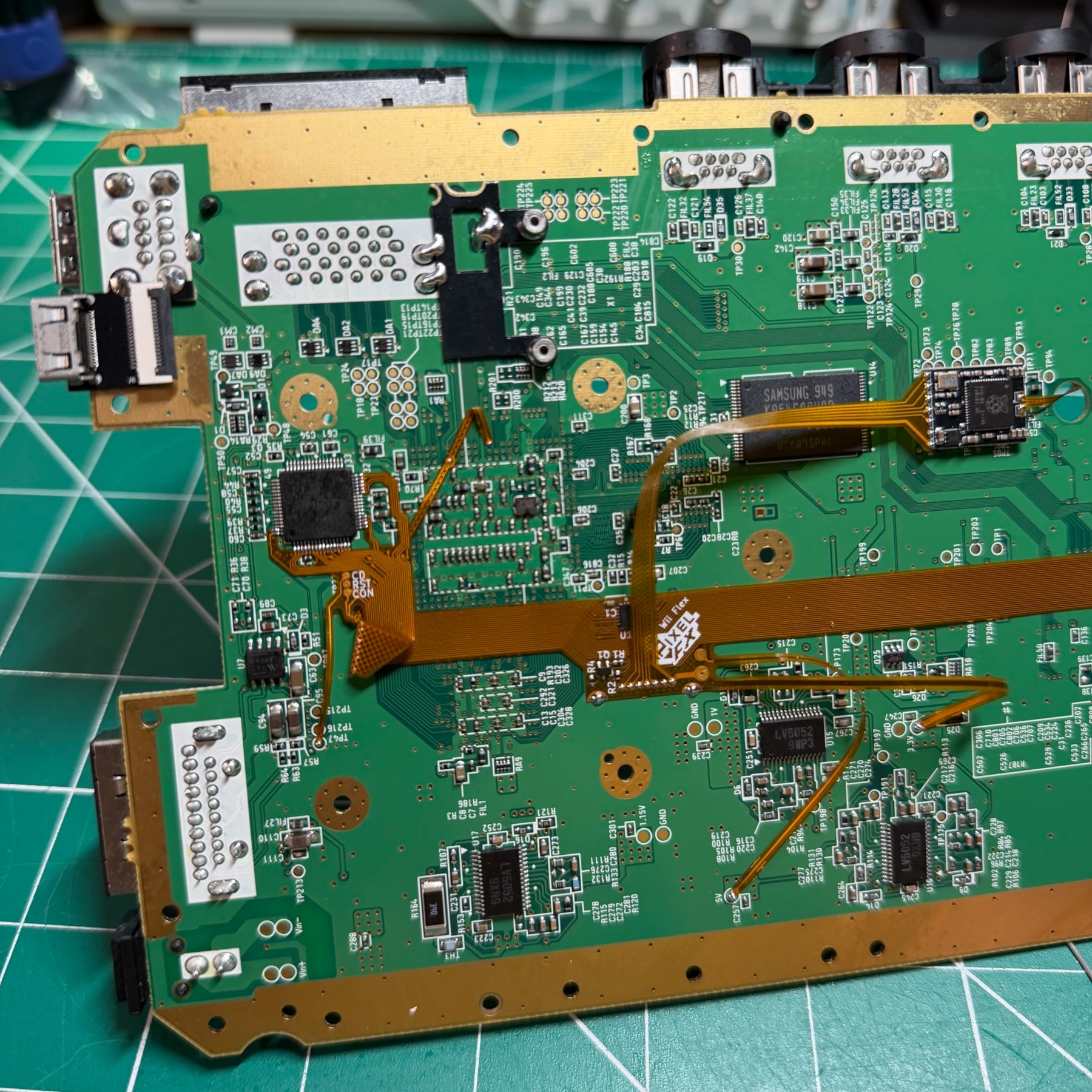
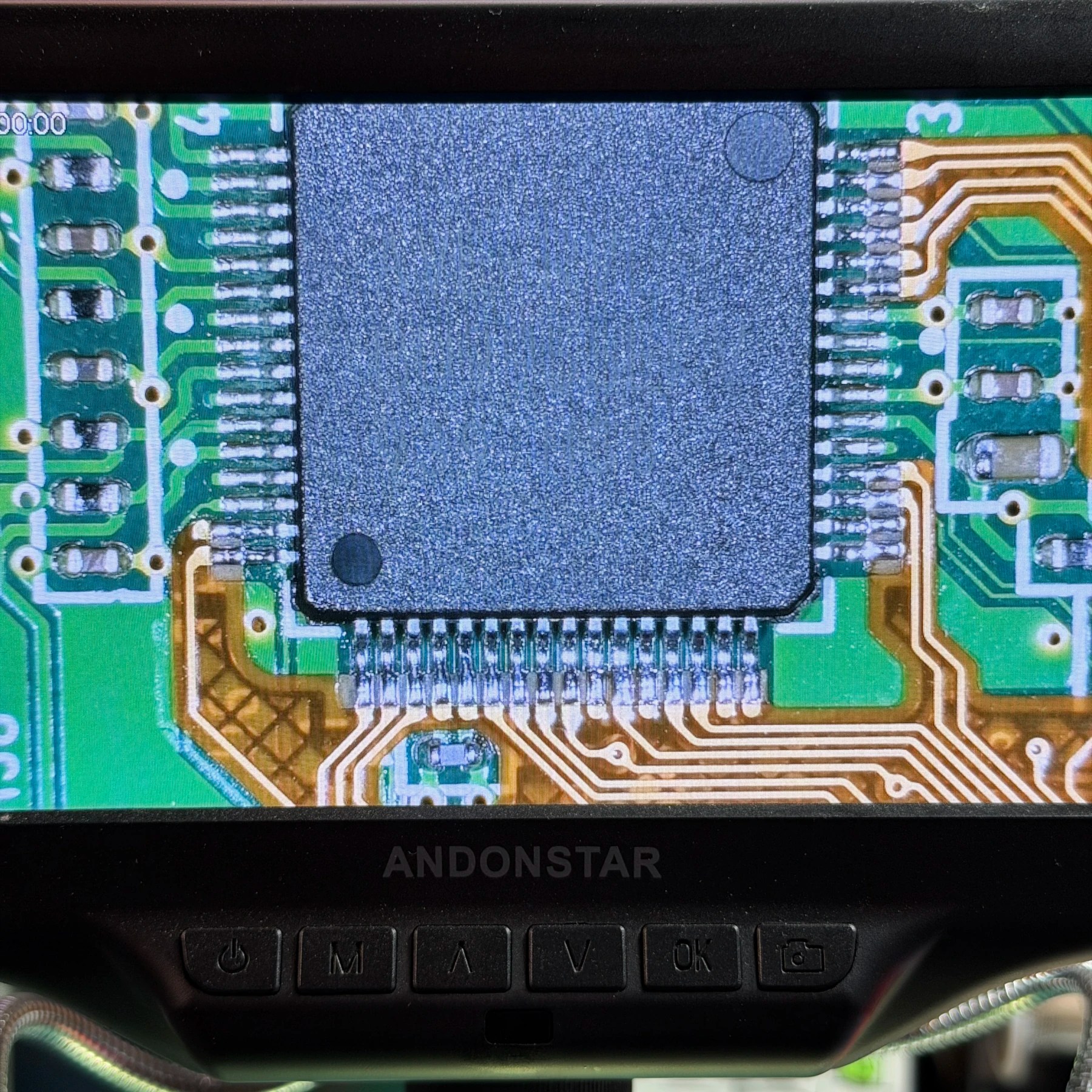
It was then time to begin the HDMI mod so I read through the guide and started by solder-washing all the necessary pins on the AVE encoder chip. This is because its best practice when mixing leaded and lead-free solder and I always use leaded especially when dealing with heat-sensitive items like flex ribbons. One that was done, I scraped the 4 or so points some of the flex arms will connect to then oriented the flex for its install (always double check when dealing with a flex connection and multiple sides of the same chip that the alignment is good on ALL sides) and tacked on the corners.
Once I confirmed the orientation was good around all 3 sides I went ahead and soldered it on, checked all connections to ensure they were secure and no bridging, then cleaned up and it was time to do some origami!
Once the main connection was secured I now had to bend/fold the main flex “trunk” around and under itself to be correctly oriented. These kinds of folds are always tricky because you want a good fold so there is no strain put on any joints as it tries to flatten but you also don’t want to crease or damage the interior traces in any way. Once it was folded as tight as could safely be, I then soldered the 4 small arms to the board via the map in the instructions.
Next up was clearing some pins near the AV out connector where the new mini-HDMI port will go, as well as where the GEM board will be attached and soldering the USB sniffer board and flexes together. The USB sniffer then attaches to the main flex and routes through the board up to the top side. The GEM mount is easy, you just need to make sure you don’t press it down and damage or short out on a small resistor pack and the HDMI port mounting is easy as long as you make sure the actual port is running level parallel to the board edge.
Now it was time to do some more folding and connect the main flex to the GEM board, set the jumpers and then connect the antenna and HDMI flex before securing the GEM board to the Wii motherboard as the final install piece. With that all done, the trickiest parts of the HDMI mod are complete 👍
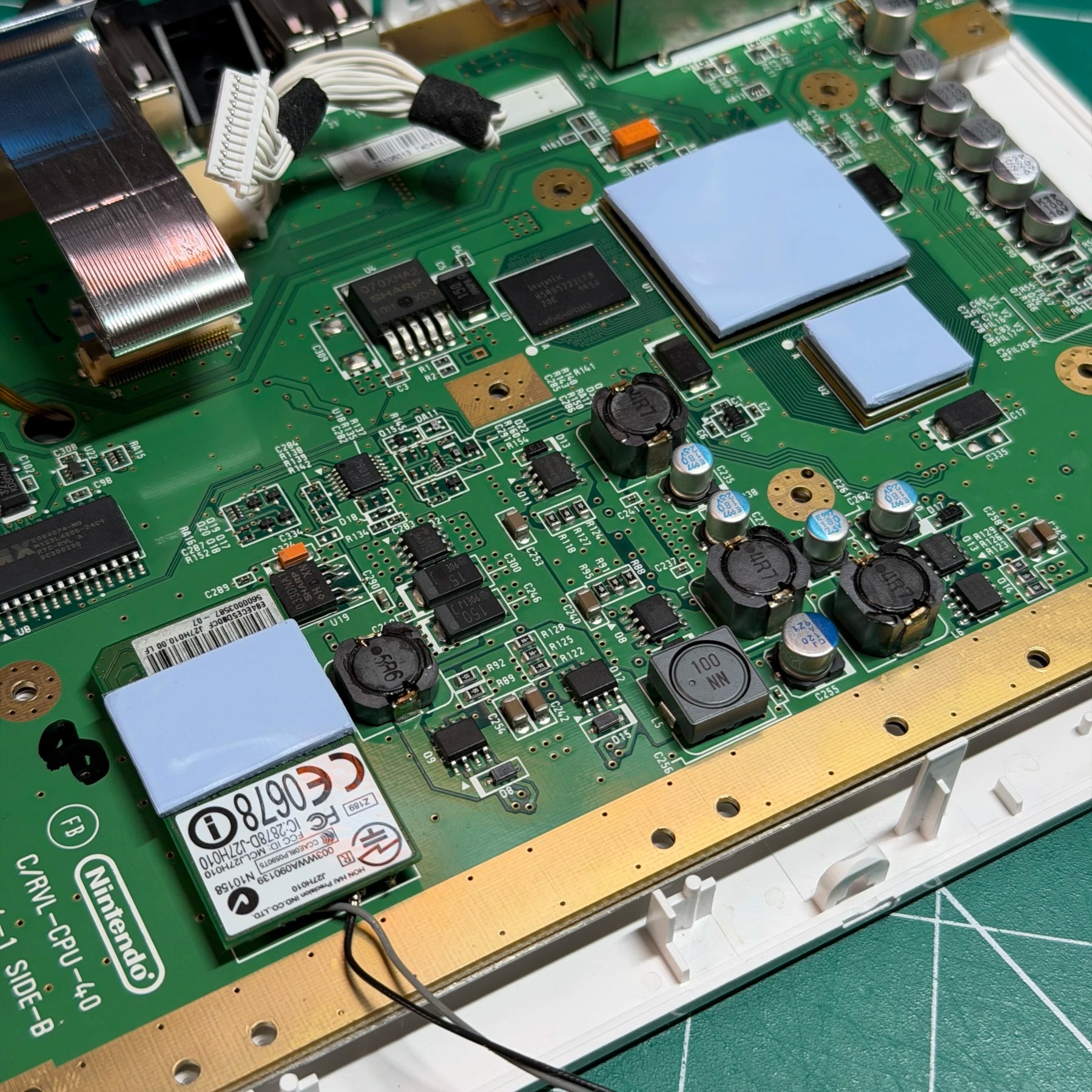
Knowing the only portion left of the HDMI mod is the shell cutting and the SSD install happens after reassembly begins the last motherboard piece to deal with is the new thermal pads. Normally these are only done when cleaning service is selected but since the board was exposed and the original pads didn’t peel off cleanly I just put brand new Arctic MX pads in their place to be thorough.
Once that was done, it was time to put the motherboard back in the shell, cut/trim the lower shield (so it doesn’t touch/ground out to the new HDMI port) and drop the top shell on so it can be marked for the HDMI port cut. For this process I just mark the very edge with a fine point sharpie, then make a small incision on both sides with my Xacto knife and snip out a small section. The rest is all done via fine diamond tipped files (jewelers use them) to very carefully remove material and check, rinse and repeat until I can secure the shell but not carve out a hole that’s too big! The key is go slow, it does require lots of fit attempts and taking apart but it’s worth having a clean finished result on the back and I’m happy with how this one turned out. I’ve seen other modders (😏) just cut a whole rectangle around the port instead of trying to follow the shape and I think that looks really sloppy so we won’t be doing that here!
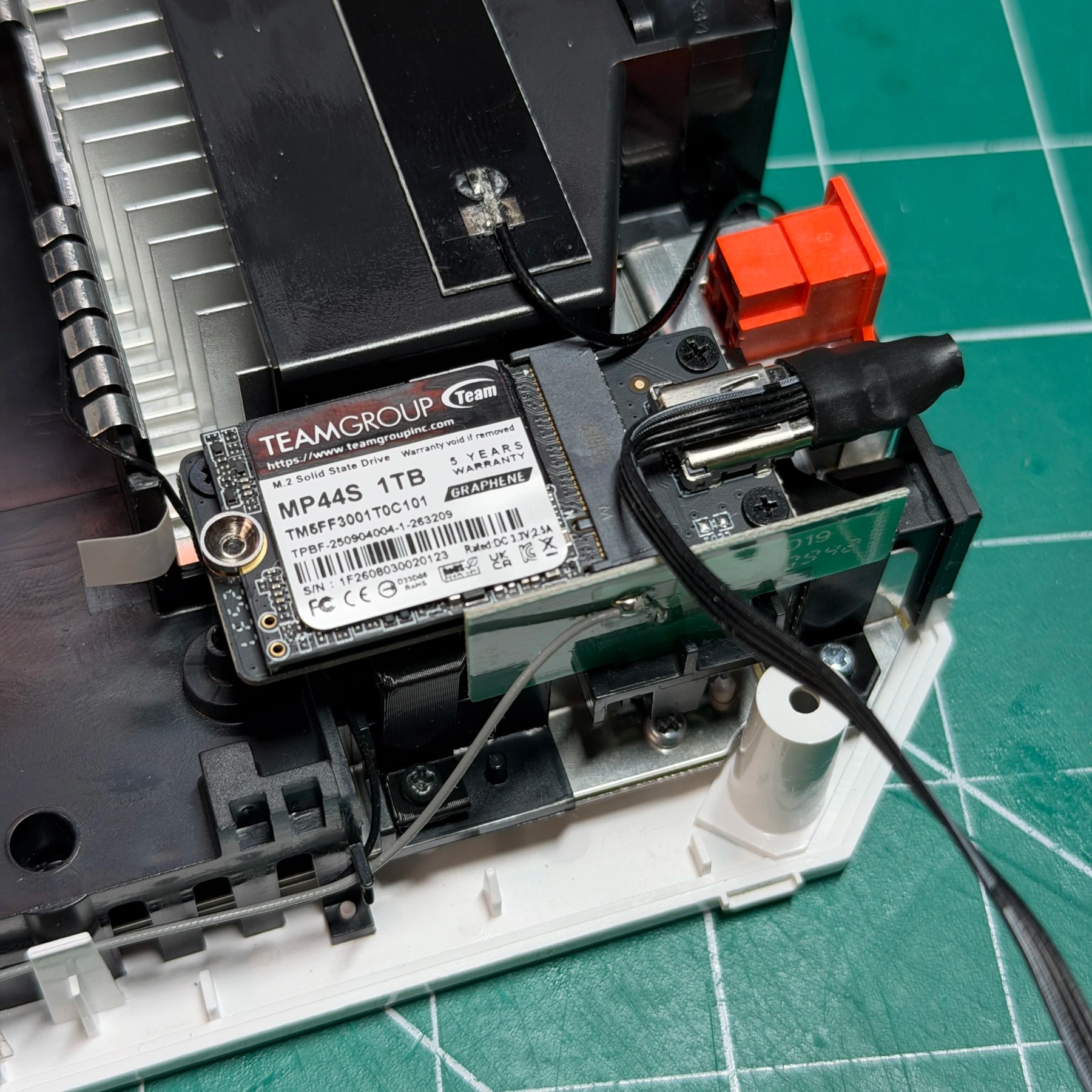
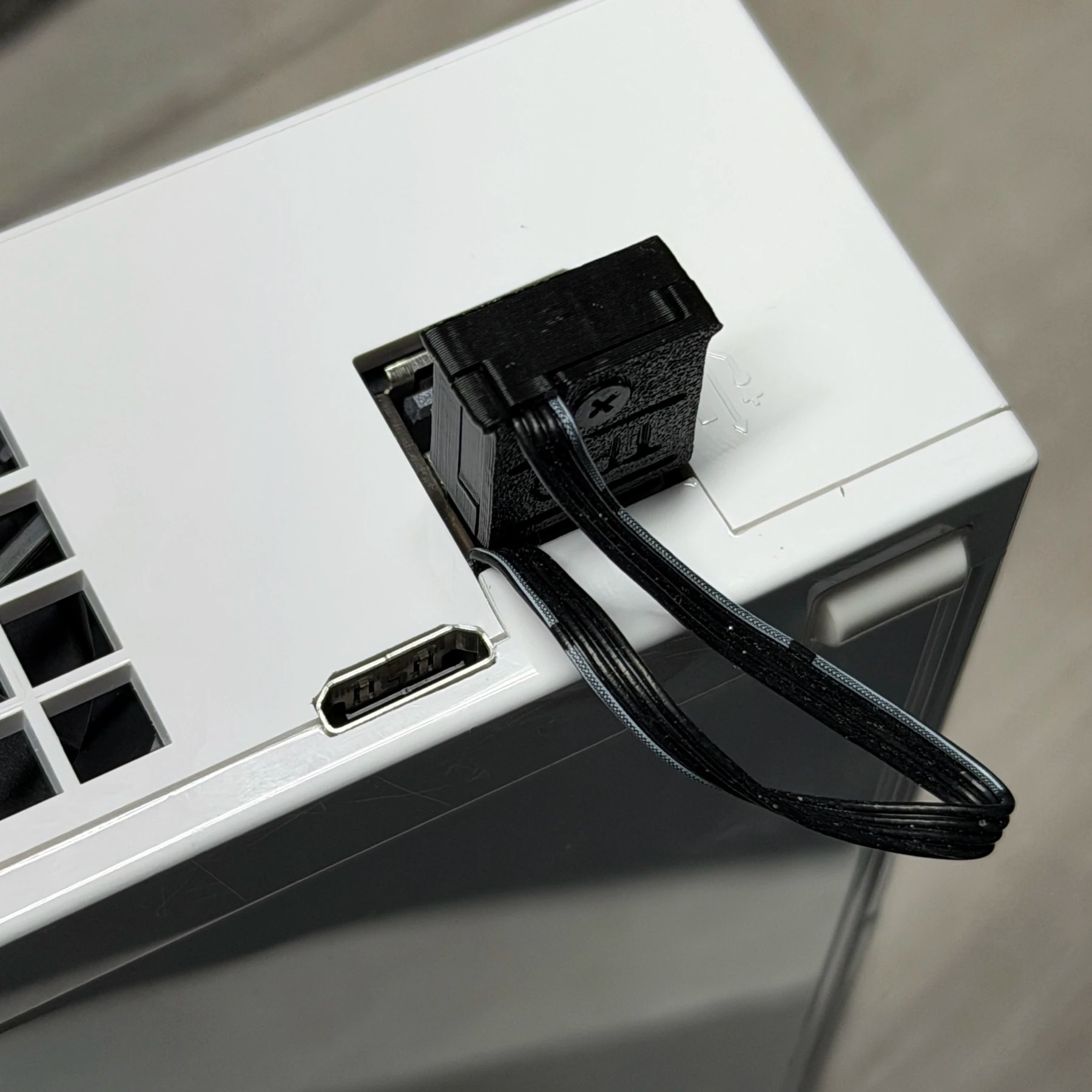
Once I’m happy with the end results I then put the customers 1TB NVME drive into the 3D printed bracket (from PeacefulOutcome) and secure it to the top of the plastic fan shroud once the reassembly has reached that point. From that adapter a thin 4 wire plug needs to be routed out the back near the new HDMI port/USB ports so I ran it along the top of the fan shroud lying flat, taped it, then snuck it out the very tight corner of the bottom USB port and ensured it wouldn’t get snagged by the top shell. Once that looked good, it was just a matter of following the disassembly but in reverse and get the entire system put back together except the top shell piece.
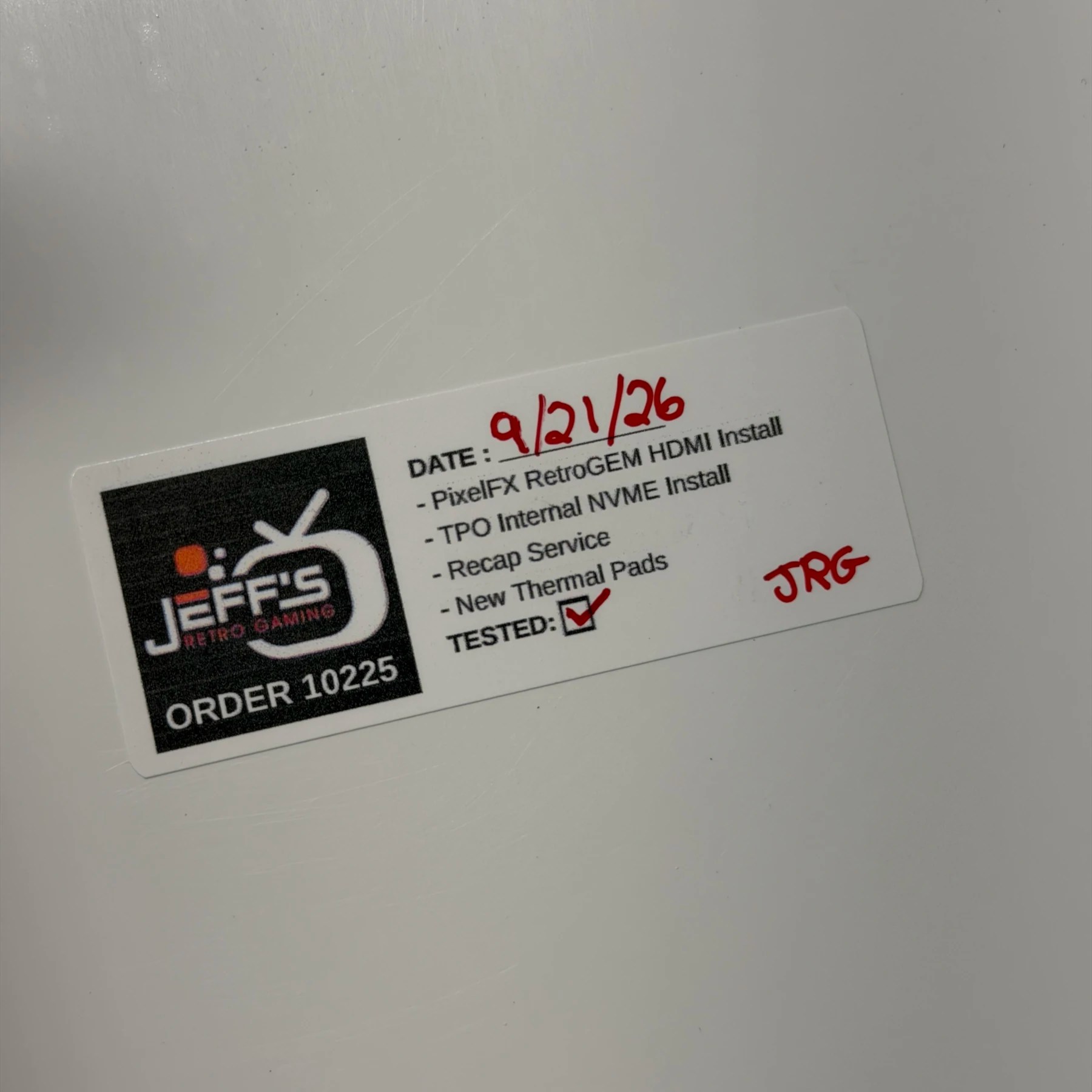
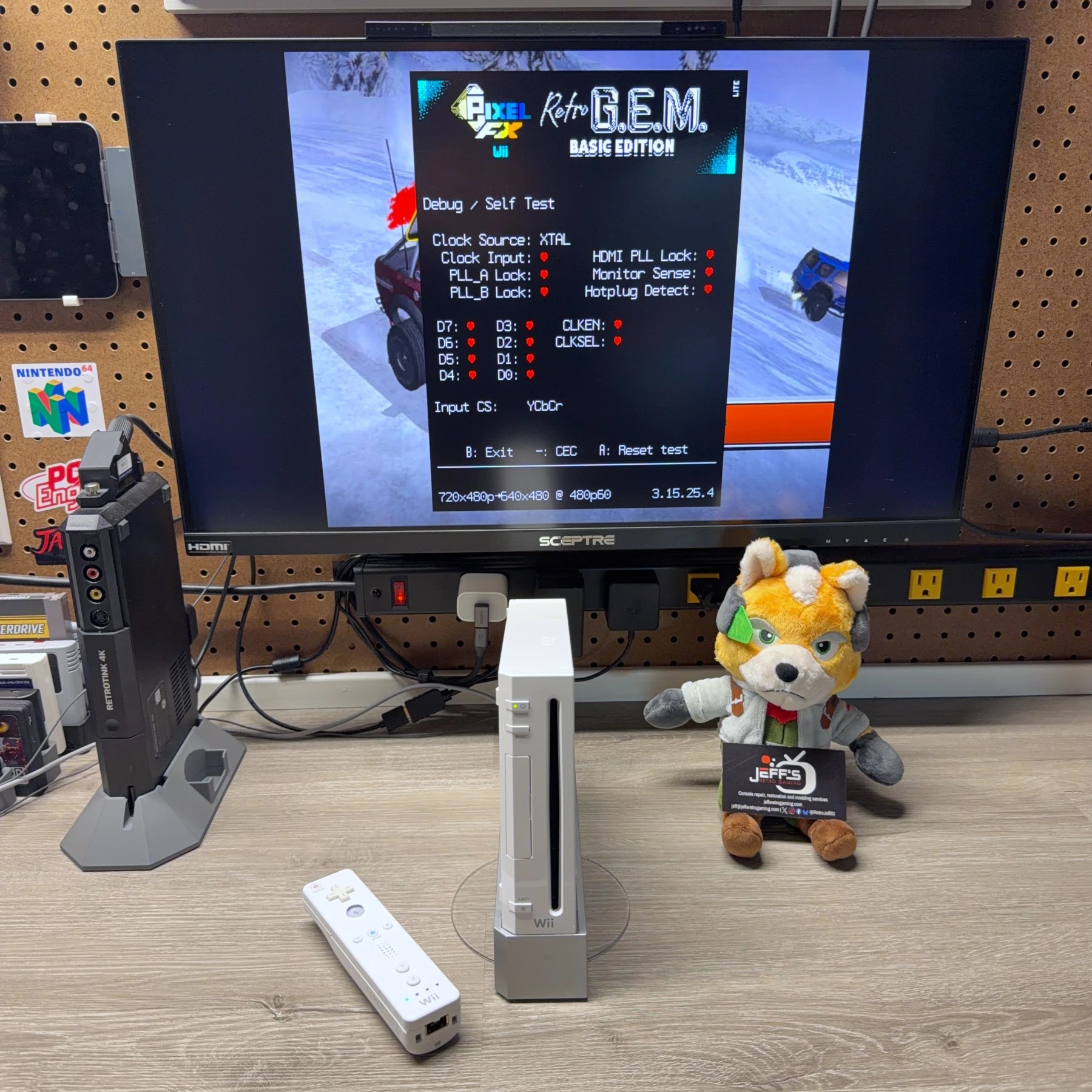
This is so that testing could be done then my sticker added after I knew it was good to go. So before even worrying about the drive I fired it up and confirmed I had digital out into my RetroTink and sure enough I did! It showed all hearts in the debug screen so I joined Wi-Fi, updated to latest stable release and let it run for a while.
The customer had already had this Wii soft modded so it was just a matter of me hooking the drive up to my PC and formatting to work with the Wii (Wii Backup manager and USBLoaderGX) and they will take care of the rest once it returns home.
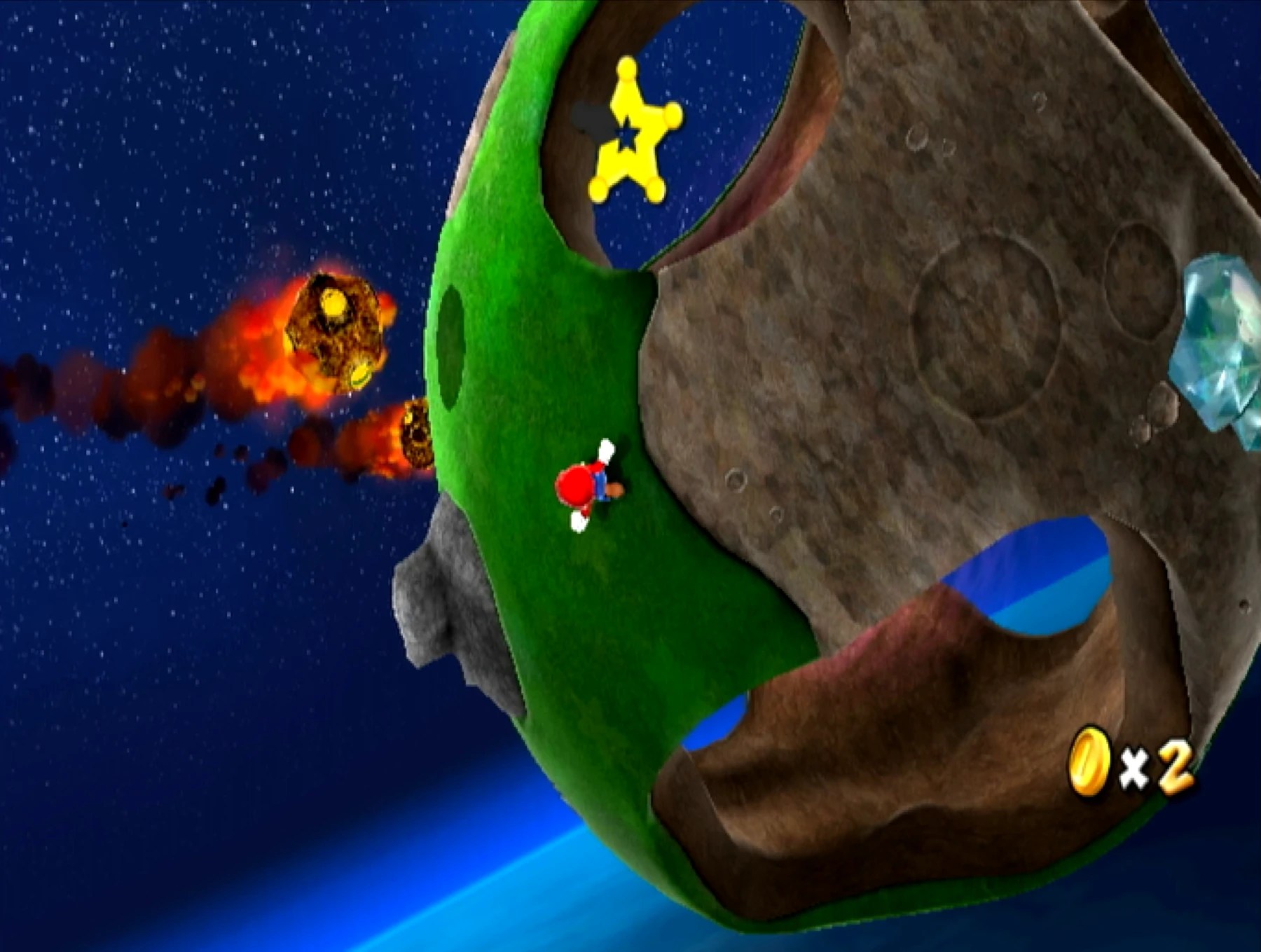
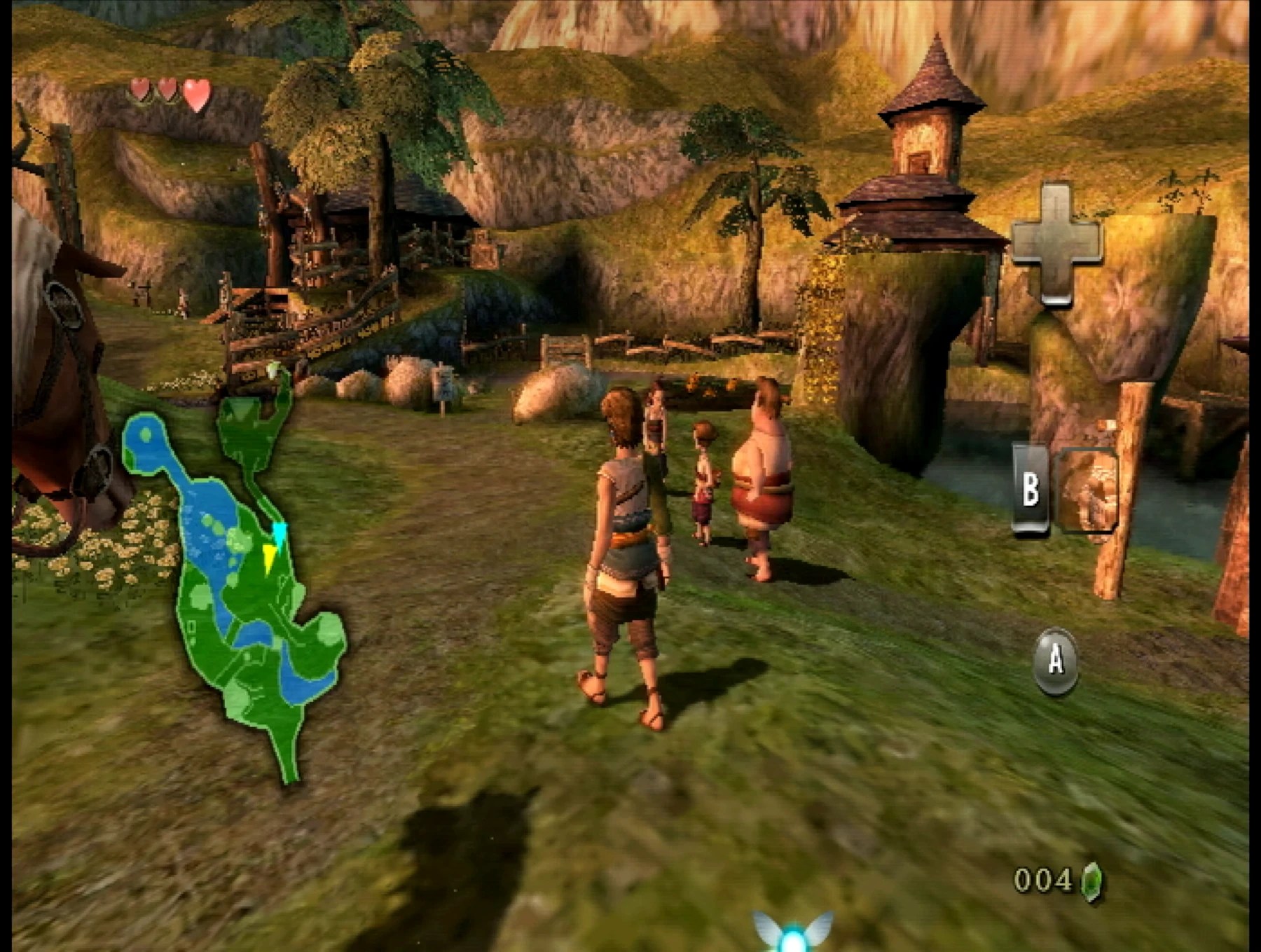
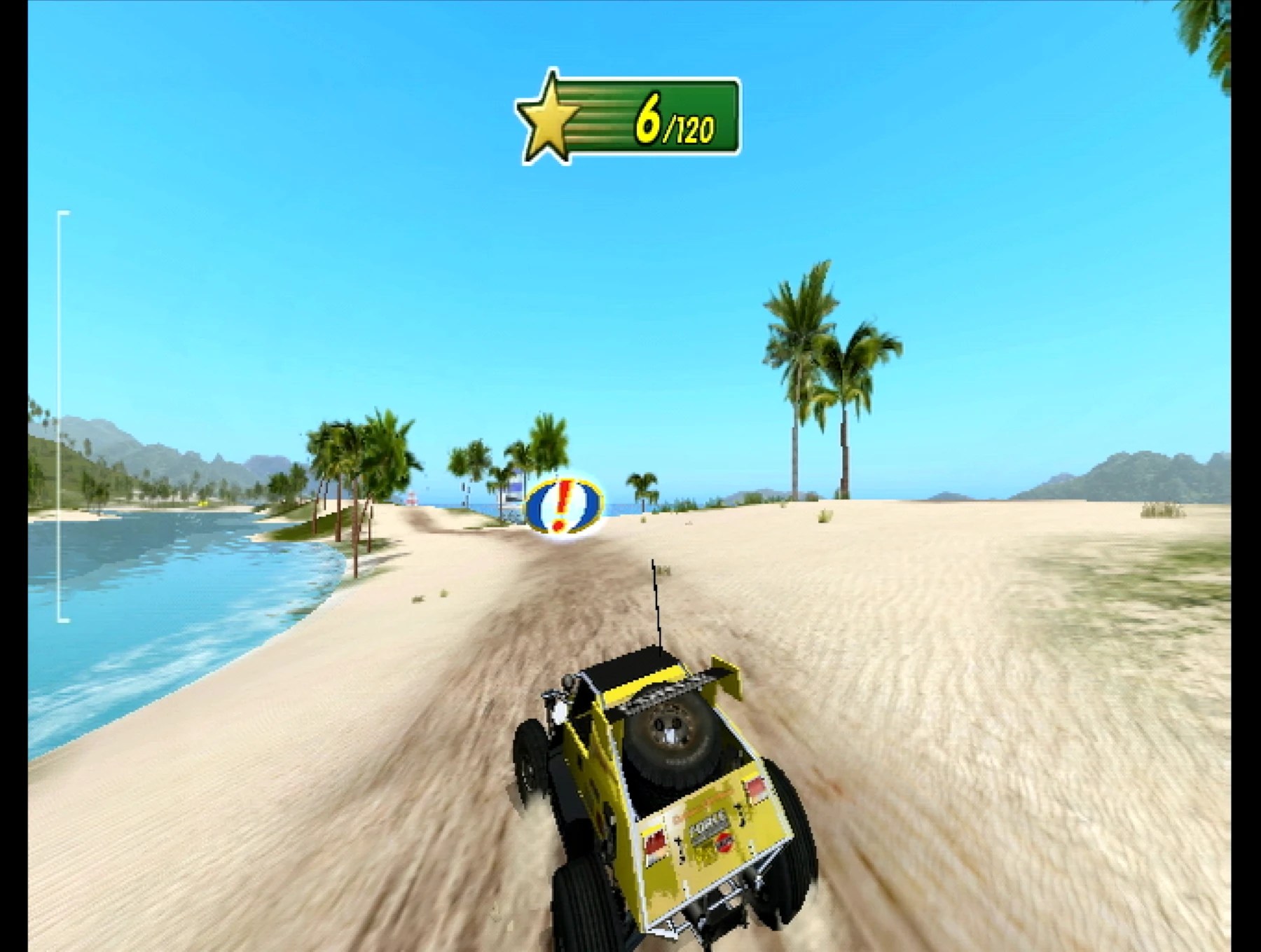
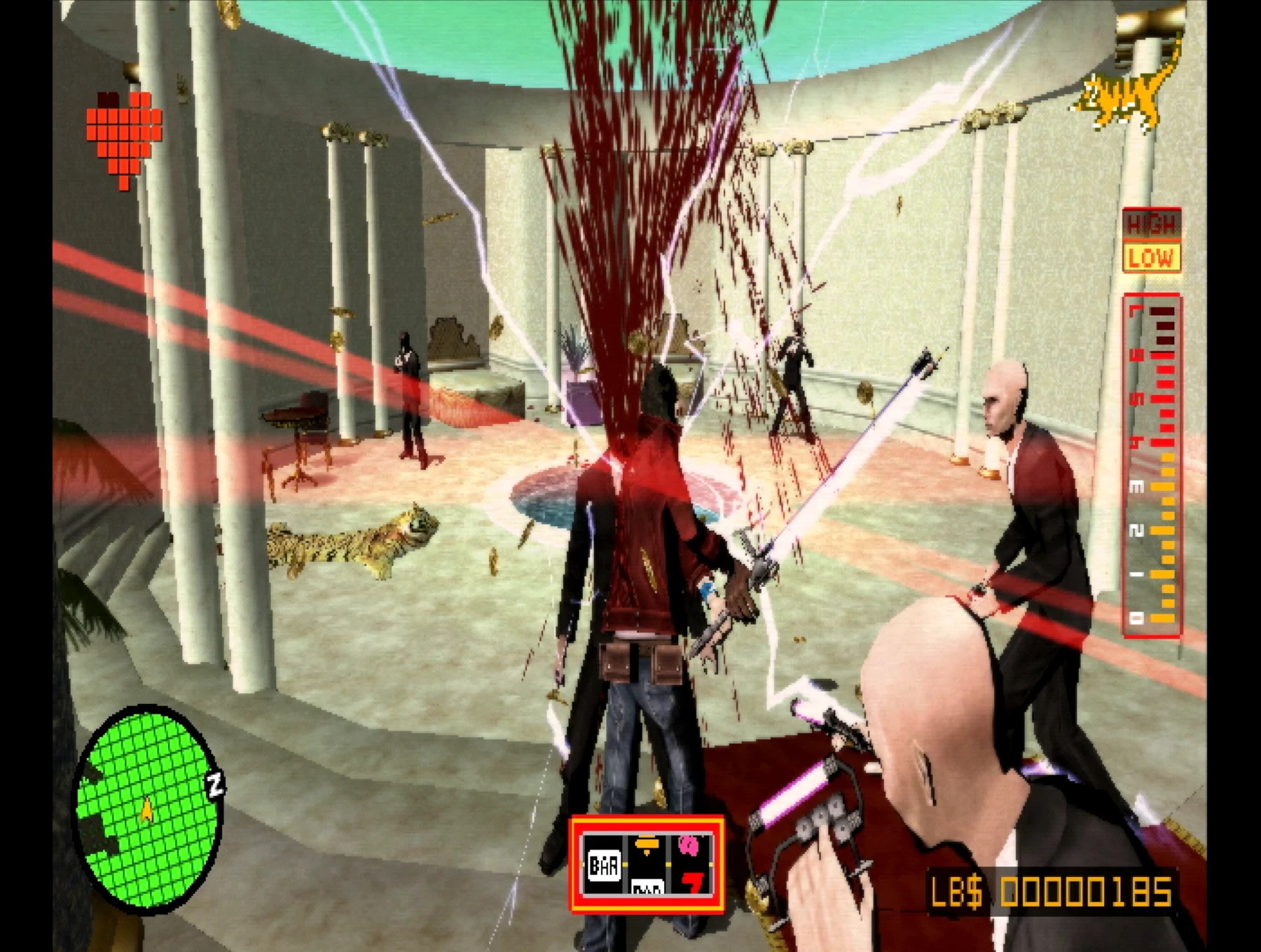
I picked out some games for testing and got my 4K captures (seen below!) and made sure everything from the drive to the HDMI mod was working perfectly and while I’m not a fan of the Wii these 4 games are probably my favorites so it was fun to play them for a bit while also ensuring the system was running as it should.
Another Wii completed and another service option added to the site!